
Upsells and recommendations in the side cart
OCart has two ways to suggest more products in the cart:
- Upsell. One featured product with an Add button, optionally at a special price. Add up to 5 upsell widgets.
- Recommendations. Several products in a list, grid or slider. Add up to 3.
Create an upsell
- Open OCart → Side cart → Add widget → Upsell.
- Under Product → Which product, choose:
- Specific product. You pick it.
- Suggested by Shopify. Related to what’s in the cart.
- Cheapest from a list or collection.
- Most expensive from a list or collection.
- Optional: tick Hide if it’s already in the cart and Hide if it’s sold out.
- Optional: under Discount, turn on Offer this product at a discount, then set the Discount name, type (% off or Amount off) and value. The discount applies only when the shopper adds the product from this upsell.
- Edit the Title, Subtitle and Button text, then Save.
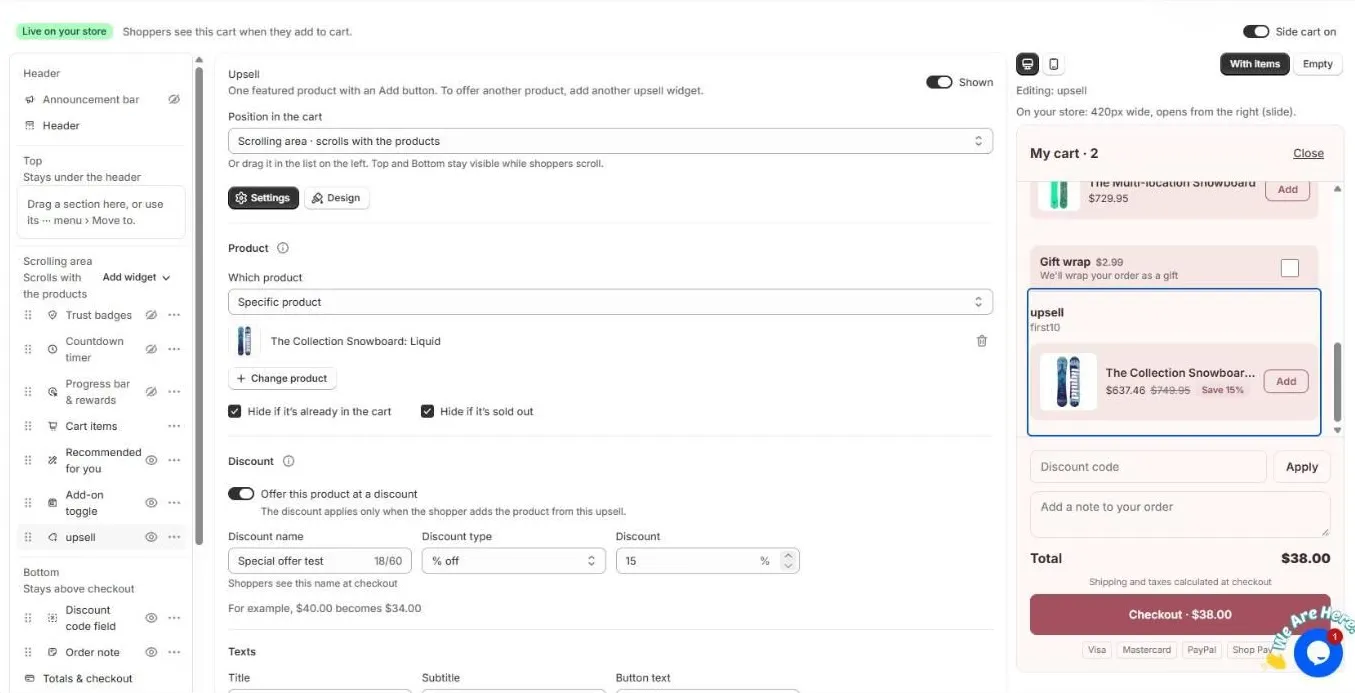
The preview shows the sale price, the original price crossed out and a Save 15% badge.
Add recommendations
- Click Add widget → Recommendations.
- Under Which products, choose Suggested by Shopify, Collection or Specific products.
- Set the Number of products, the title and the button text.
- In Design, choose a List, Grid or slider layout.
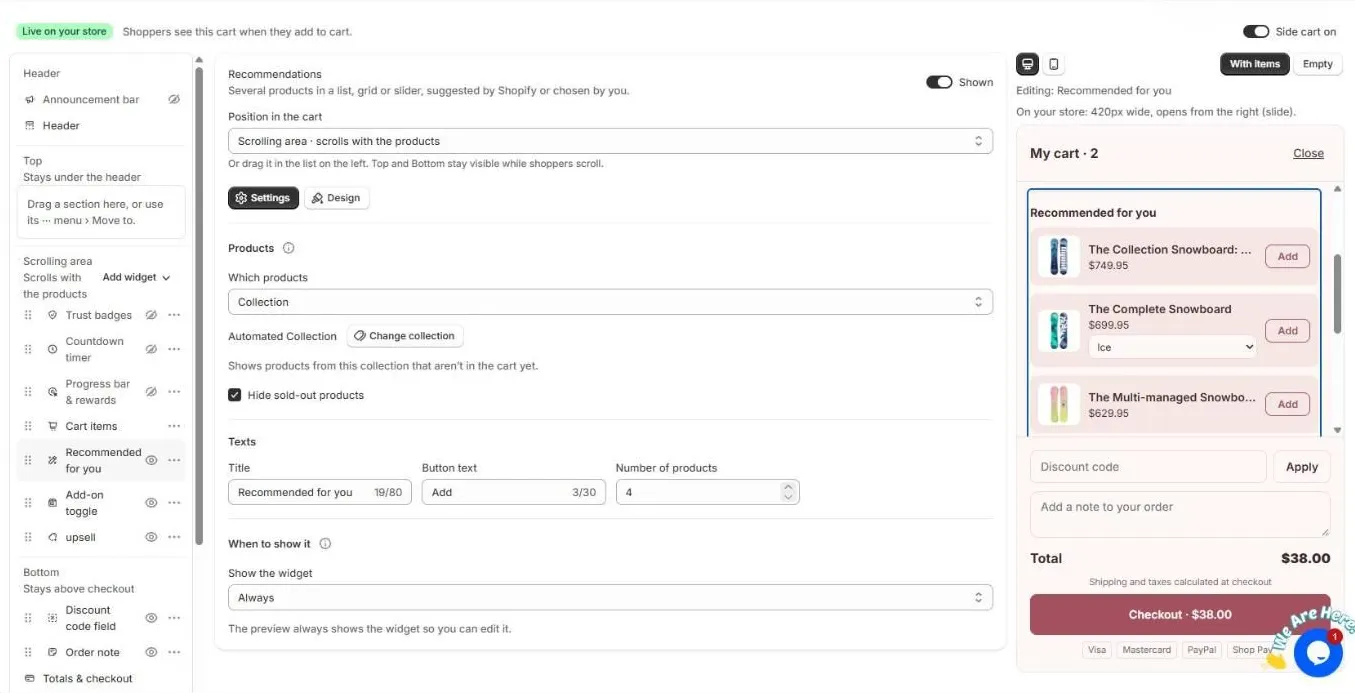
Products already in the cart are skipped automatically, and you can hide sold-out products.
Tips
- Offer something that goes with the cart, at a lower price than the main item, such as accessories, care products or refills.
- A small discount (10–15%) on the upsell often converts better than a bigger one on an unrelated product.
- Check results per widget in Analytics.
Still need help?
Chat with us from OCart → Help, or send us a message. We usually reply within one business day.
Contact support
Install OCart · coming soon