
Install OCart and finish setup
OCart adds a slide-out side cart with upsells and rewards, and bundles and add-ons on your product pages. This guide takes you from install to a live store.
Step 1: Install the app
- Open the OCart listing on the Shopify App Store and click Install.
- Review the permissions Shopify shows and approve them.
- OCart opens inside your Shopify admin under Apps → OCart.
OCart asks only for the access it needs:
| Permission | Why OCart needs it |
|---|---|
| Products | Show your products in upsells, bundles and add-ons |
| Discounts | Create the single “OCart offers” automatic discount that applies offer prices and rewards at checkout |
| Themes (read) | Check whether the OCart app embed and blocks are turned on in your theme |
| Orders | Count revenue that came from OCart offers in Analytics |
Step 2: Complete the welcome steps
The first time you open OCart, a short Welcome to OCart setup runs:
- What do you want to set up first? Pick the side cart, product page offers or both. You can turn on the other one any time from the dashboard.
- Turn the app on in your theme. OCart opens your theme editor with the app embed ready to switch on. See Turn on the OCart app embed.
- Choose a side cart template. You can fine-tune colors and fonts later.
- Create your first offer. OCart fills in a starter offer. Change anything, or publish it as is.
You can also set a free shipping goal. If you already have a free-shipping rate at that amount in Shopify, tick I already have a free-shipping rate at this amount so OCart only shows the progress, without creating a second discount.
Step 3: Check the dashboard
When setup is done you land on the dashboard. It shows whether the app embed is on, what is live in the side cart and on product pages, and how much revenue OCart brought in.
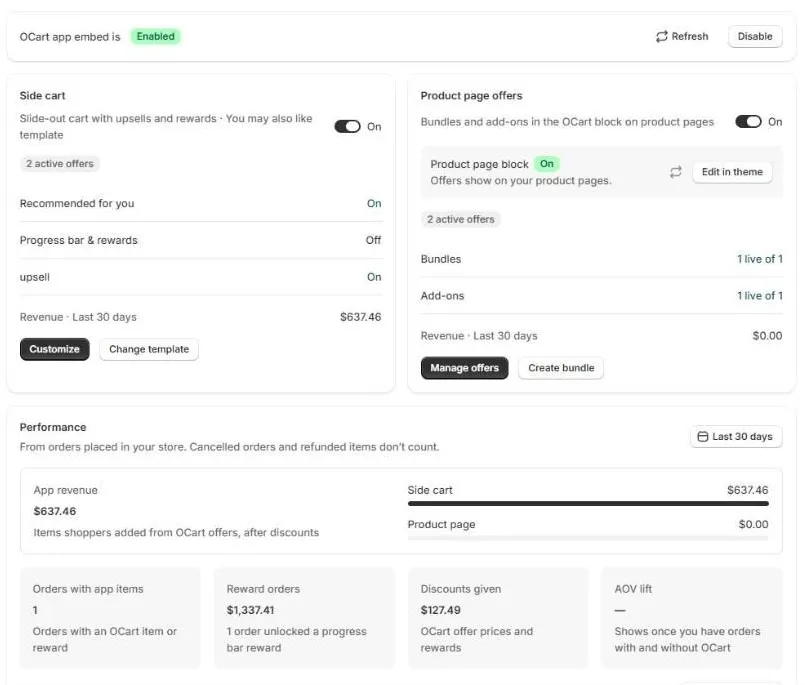
From here:
- Customize opens the side cart editor.
- Change template opens the side cart templates.
- Manage offers and Create bundle open product page offers.
- Preview on store opens your storefront so you can try the cart yourself.
Next steps
Still need help?
Chat with us from OCart → Help, or send us a message. We usually reply within one business day.