
Troubleshooting and common questions
Get help inside the app
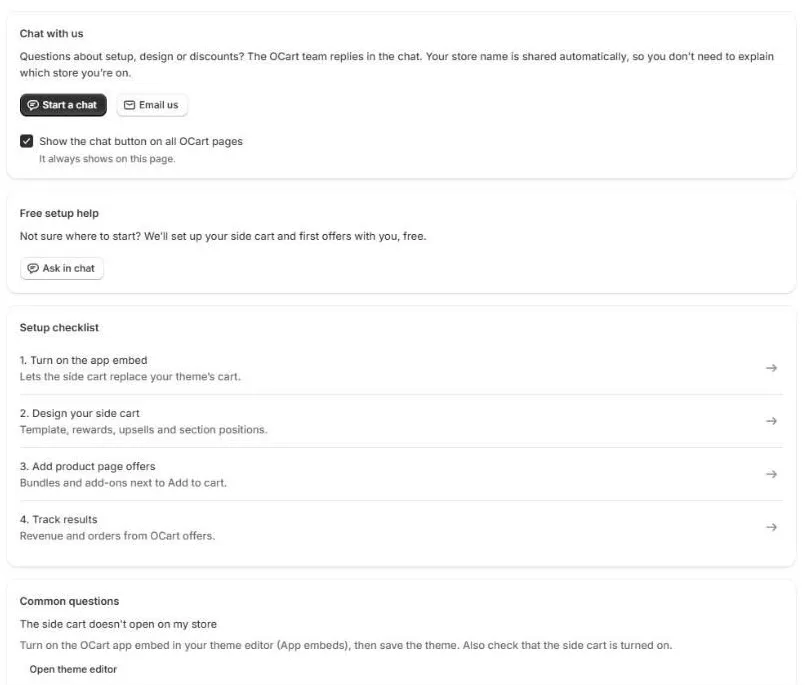
Open OCart → Help to:
- Chat with us. The OCart team replies in the chat. Your store name is shared automatically, so you don’t need to explain which store you’re on.
- Email us.
- Get free setup help. We’ll set up your side cart and first offers with you, free.
- Follow the setup checklist, with a shortcut to each step.
The side cart doesn’t open
- Turn on the OCart side cart app embed and save the theme. See Turn on the OCart app embed.
- Check that the Side cart switch on the OCart dashboard is On.
- Make sure you edited your published theme.
- Try again in a private browser window.
A discount isn’t applied at checkout
All OCart prices and rewards are applied by one automatic discount called OCart offers.
- Go to Shopify → Discounts and check that OCart offers is Active.
- Check that the upsell, reward, bundle or add-on has a discount set.
- For bundles, every item in the bundle must be in the cart.
- Other automatic discounts may not combine with OCart. Check the discount combination settings.
Offers don’t show on product pages
- Add an OCart block to your product page template.
- The offer must be Active and inside its schedule.
- Its products must be in stock and published to the Online Store channel.
- The Product page offers switch must be On.
Numbers in Analytics look wrong
Cancelled orders and refunded items are removed on purpose. New orders can take a few minutes to show. See Analytics.
Still need help?
Contact us. We usually reply within one business day.
Frequently asked questions
The side cart doesn’t open on my store
Turn on the OCart app embed in your theme editor (App embeds), then save the theme. Also check that the Side cart switch on the OCart dashboard is on.
A reward or offer discount isn’t applied at checkout
Discounts come from the “OCart offers” automatic discount. Make sure it is active in Shopify → Discounts, and that the offer or reward has a discount set.
The bundle or add-ons don’t show on a product page
Add an OCart block to your product template, and check that the offer is active, scheduled for today, and that its products are in stock and published to your online store.
How do I change how the cart looks?
Pick a template, then adjust colors, text and section positions in the side cart editor. The preview shows changes before you save.
Will OCart slow down my store?
No. OCart loads through a Shopify theme app extension, only when the side cart or offers are switched on, and doesn’t edit your theme code.
Still need help?
Chat with us from OCart → Help, or send us a message. We usually reply within one business day.