
Customize your side cart
The side cart editor is where you design the cart shoppers see when they add a product. Open it from OCart → Side cart, or click Customize on the dashboard.
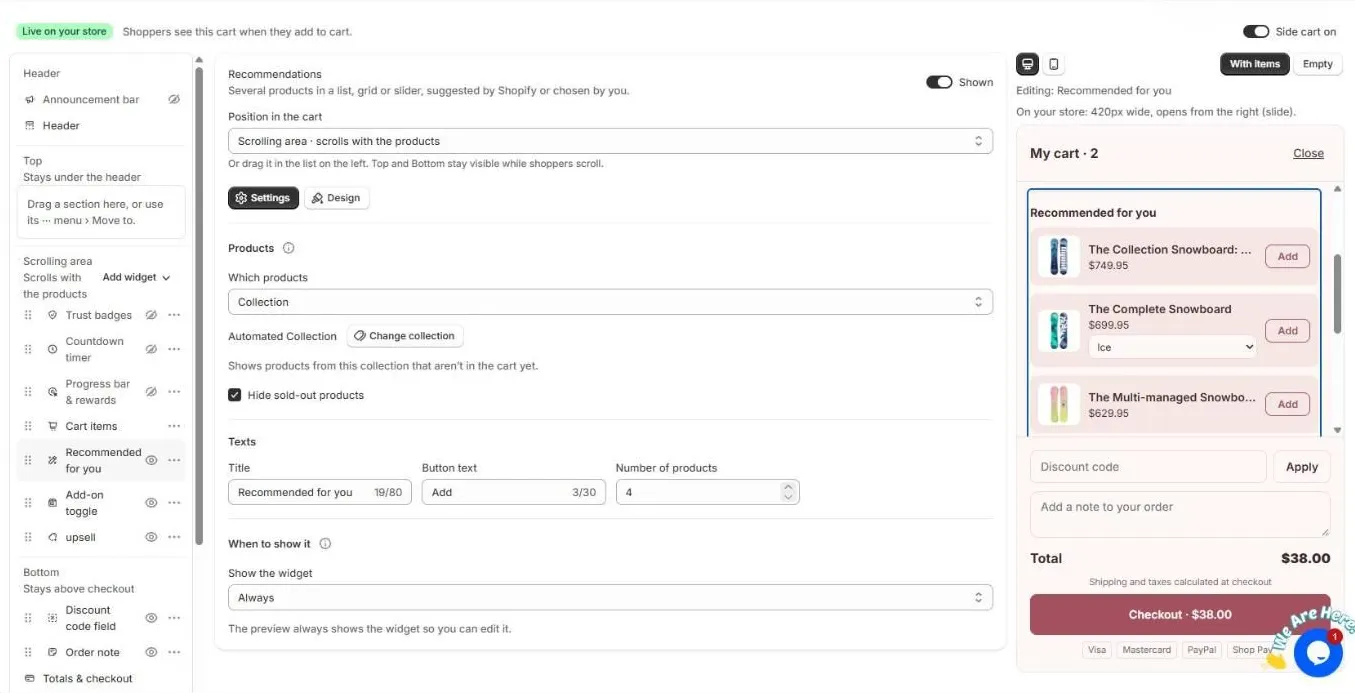
The editor has three columns:
- Sections (left). Everything in the cart, grouped by where it sits.
- Settings (middle). Options for the section or widget you selected, split into Settings and Design.
- Preview (right). A live preview of your cart. Switch between desktop and mobile, and between With items and Empty.
Cart areas
The cart is split into areas so key parts stay visible while shoppers scroll:
- Header. Announcement bar and the cart title. Always at the top.
- Top. Stays under the header. Good for a progress bar or countdown timer.
- Scrolling area. Scrolls with the products: cart items, upsells, recommendations and add-ons.
- Bottom. Stays above checkout. Discount code field and order note.
- Totals & checkout. Always last.
Drag any section by its handle to move it, or use the ⋯ menu → Move to. The eye icon shows or hides a section without deleting it.
Add widgets
Click Add widget in the Scrolling area to add:
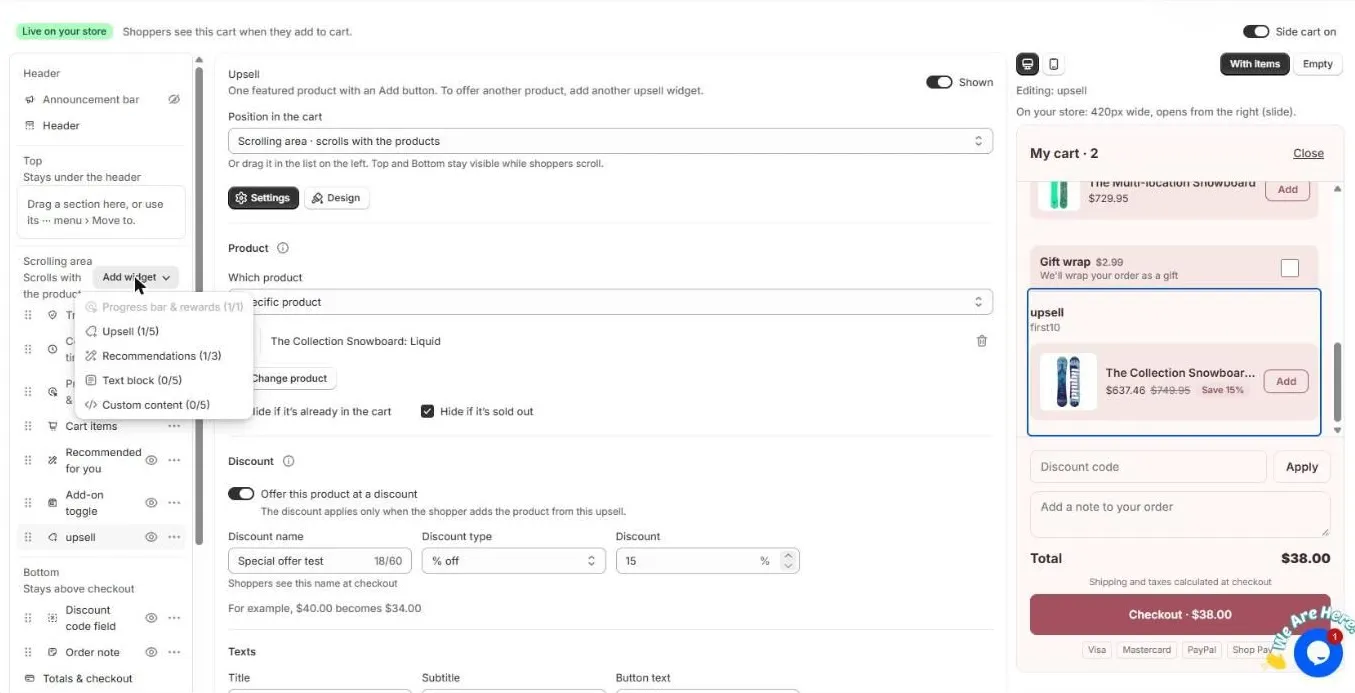
| Widget | What it does | Limit |
|---|---|---|
| Progress bar & rewards | Unlocks rewards as the cart total grows | 1 |
| Upsell | One featured product with an Add button | 5 |
| Recommendations | A list, grid or slider of products | 3 |
| Text block | A short message, such as a shipping note | 5 |
| Custom content | Your own HTML, such as a guarantee badge | 5 |
Built-in sections include Trust badges, Countdown timer, Cart items, Add-on toggle (shipping protection or gift wrap), Discount code field and Order note.
When a widget shows
Each widget has a When to show it option:
- Always
- When the cart total is in a range. For example, only between $20 and $50.
- When the cart contains certain products.
You can also set a start and end date. The preview always shows the widget so you can edit it.
Settings that apply to the whole cart
Open Settings in the editor sidebar to control:
- Opening the cart. Open it after “Add to cart”, and which side it slides in from.
- Terms and conditions. Require shoppers to tick a box before checkout.
- Empty cart. The message and button shown when the cart is empty.
- Texts. Every word in the cart, so you can translate or rewrite it.
Save and publish
Click Save. Changes go live on your store straight away, as long as the Side cart on switch is on and the app embed is enabled.
Related
Still need help?
Chat with us from OCart → Help, or send us a message. We usually reply within one business day.