
Turn on the OCart app embed
The OCart side cart is added to your store with a Shopify app embed. It doesn’t edit your theme code, and you can switch it off at any time.
Turn it on
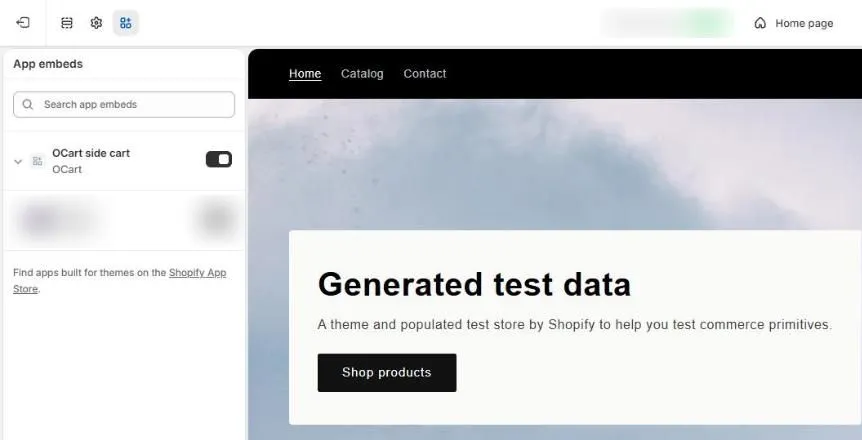
- In OCart, open the Dashboard. If the top card says OCart app embed is Disabled, click Enable. This opens the theme editor on the App embeds panel.
- Or go to Online Store → Themes → Customize, then click the App embeds icon in the left sidebar.
- Find OCart side cart and switch it on.
- Click Save in the top-right corner of the theme editor.
Check that it worked
Go back to OCart and click Refresh on the dashboard. The status changes to OCart app embed is Enabled.
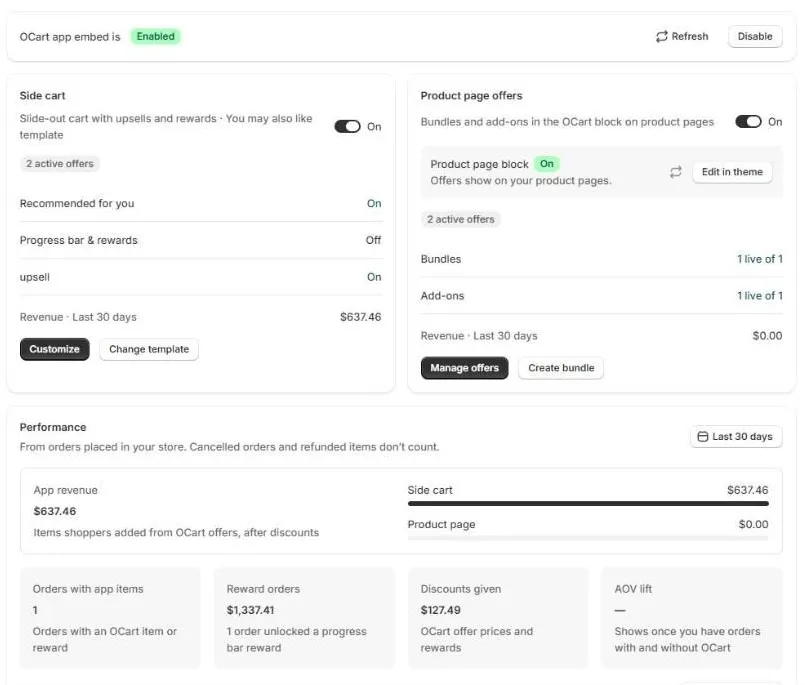
Then click Preview on store, add any product to the cart, and the OCart side cart slides open.
The side cart still doesn’t open
- Make sure you saved the theme you have published. Embeds are saved per theme.
- Check that the Side cart switch on the OCart dashboard is On.
- Clear the cart and try again in a private window. A browser cache can keep the old cart for a short time.
- Still stuck? Contact us and we’ll check your theme for you.
Frequently asked questions
Does the app embed change my theme code?
No. App embeds are a Shopify feature that adds OCart without editing theme files. Turning the embed off removes the side cart straight away.
I changed my theme. Do I need to turn the embed on again?
Yes. App embeds are saved per theme, so turn on the OCart side cart embed in the new theme and save it.
Still need help?
Chat with us from OCart → Help, or send us a message. We usually reply within one business day.
Contact support
Install OCart · coming soon